AI Image to Image
Redraw a Photo or Sketch in Four Hand-Drawn Looks
No skill matches that. Try another word.
No saved characters yet. Save a face once, then drop it into any doodle with one tap.
Add a characterLook
Colours
Attach a photo and press send. Your first 4 images are free — no sign-up. Each run draws a pack of 4 images, 1 credit each.
What it makes
Other skills you can switch to
How it works
-
Attach your photo
Drop it in the box above, or use the camera on your phone.
-
Say what you want
One line is enough. The skill is already selected for you.
-
Press send
Style Roll runs and the result opens on its own canvas, ready to download.
Direct answer: AI image to image means starting from a picture instead of only words. At doodleai.art you attach one photo or sketch above, press send, and the Style Roll skill redraws the same person in four hand-drawn media: marker, crayon, ink sketch and watercolour. Your first 4 images are free, with no sign-up.
Most people who search for “AI image to image” want one of two different things. Some want to restyle a picture, so it keeps its subject and changes its look. Others want to edit one, so it keeps most pixels and changes a region. This page is about the first. It is also honest about the second, because the two are easy to confuse and the tools that do each are built differently.
What image to image actually means
A text-to-image model starts from a prompt and nothing else. An image-to-image model also takes an initial image as a starting point. The Hugging Face Diffusers guide to image-to-image describes it in those terms: the same kind of model as text-to-image, but given a starting picture along with the prompt, so the result is built from your image rather than from nothing.
That starting picture does a lot of work. It fixes the composition, the pose, the proportions and the rough colours before the model adds anything of its own. It is why image to image is the right tool when you care about this face, this pet or this room, and text to image is the right tool when you don’t.
The same guide lists the controls that open-source image-to-image pipelines expose to a person running them: a strength value for how closely the result should follow the original, a guidance scale for how closely it follows the text prompt, a negative prompt for things to leave out, and extras such as ControlNet for conditioning on an outline or depth map. Those are real, useful controls. They are also the reason raw image-to-image tools feel like a workshop. Doodle AI takes the opposite approach, and the next sections spell out exactly what that means.
What Doodle AI does with your image
Doodle AI is an image-to-image product with one deliberate house style: hand-drawn illustration. You give it a picture, you choose a skill, and the skill carries a fixed, tested prompt for that look. The result is a new drawing, not your photo with an effect on top.
Available now:
- Restyling a photo into a hand-drawn illustration. Hair, face shape, skin tone, accessories and outfit are kept as recognisable landmarks. Fine detail is simplified on purpose.
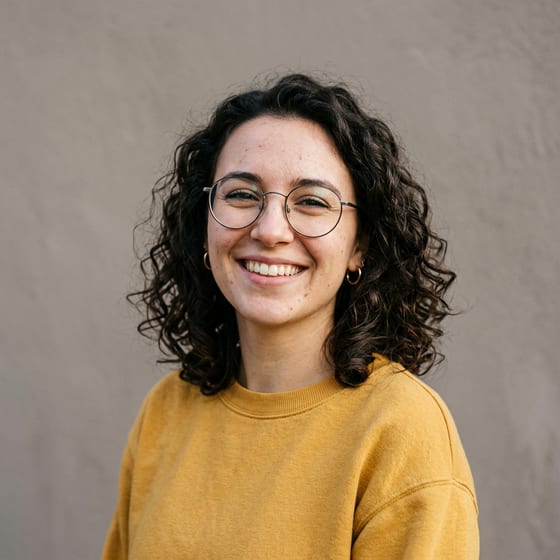
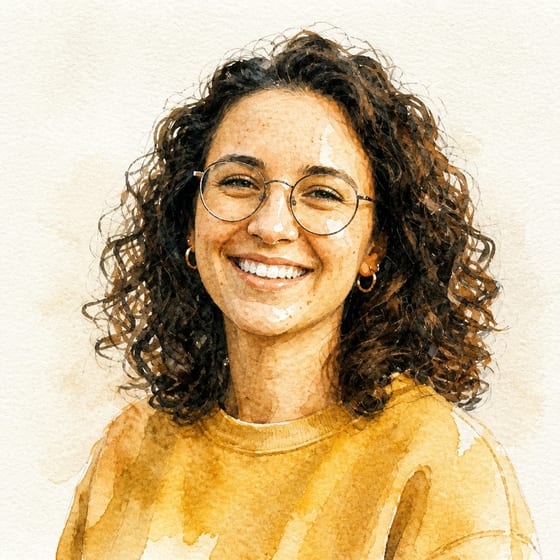
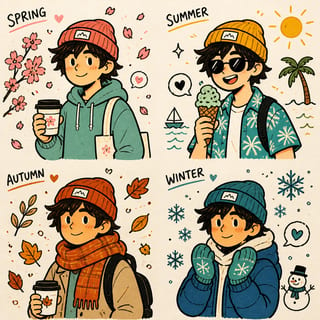
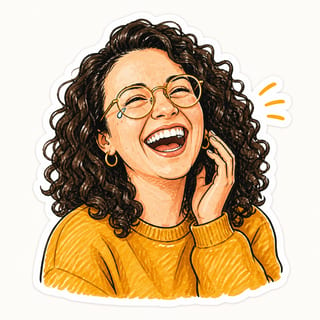
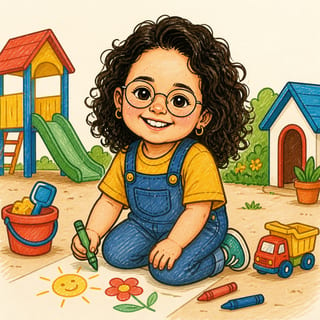
- Four looks of the same picture in one run. That is Style Roll, the skill bound to the box above. One photo goes in and four separate square images come out: bold felt-tip marker, waxy crayon, cross-hatched ink pen and soft watercolour wash. Same person, same framing, four different media.
- A sketch as the starting image. Draw on the pad behind the pencil button and the sketch is attached like a photo.
- A second, reference image. An extra style or composition reference can be sent alongside your main picture. You add it with “Use as reference in a new doodle” on an image in one of your boards.
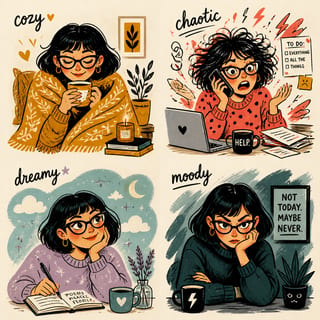
- Palette and look choices. Four palettes (Pastel, Neon, Sunset, Mono) plus a custom colour, and a set of looks such as Doodle, Chibi, Cozy, Retro, Action Hero and Sparkle.
Not in the current product:
- A strength slider, a guidance scale, or a negative prompt.
- Masks, inpainting, or editing one region while keeping the rest photographic.
- Free-text prompts that rewrite the look. Free text steers only two skills, Surprise Me (the character description) and Gift Doodle (the occasion). For the other skills the look comes from the skill you pick.
That last point is the trade you are making. You lose the fine controls, and in return the result looks like one coherent house style every time, with no prompt-writing to learn.
How the controls compare
If you have used an open-source image-to-image tool, this table maps what you know to what Doodle AI offers instead.
| Open-source control | In Doodle AI |
|---|---|
| Starting image | Your photo, a saved image, or a sketch you draw in the pencil pad |
| Strength (how much of the original to keep) | Choose a skill: Style Roll keeps the person and framing, Normal simplifies into a bold-outline doodle |
| Text prompt | Fixed per skill, so the look stays consistent. Free text steers Surprise Me and Gift Doodle |
| Negative prompt | None |
| Style or LoRA model | The skill itself, plus the look chips (Chibi, Cozy, Retro and others) |
| Conditioning image (ControlNet) | An optional reference image, and your own sketch as the starting image |
| Colour direction | Four palettes and a custom colour |
| Region edits (inpainting) | Not offered |
Three starting images that work
A photo. One clear subject, with the face or main feature visible and the light even, gives the best result. A phone selfie works. So does a pet photo, a saved image, or an exported portrait. Files up to 20 MB are accepted.
A saved or downloaded image. There is no difference to the generator between a camera-roll photo and a saved one, but quality shows. A heavily compressed or tiny image gives the model less to work from, so the drawing comes back softer.
A sketch. Open the pencil pad, draw something rough, and attach it. The generator treats the sketch as the reference: it keeps your composition and lines, cleans them up, and adds colour. This is image to image in its original sense, with a drawing as the starting point, and it works with no account. Sign in or not, you can draw and save a sketch as a PNG on the free doodle pad.
Try it: one photo, four looks
- Attach one clear photo in the box above, or draw a sketch with the pencil.
- Press send. You do not need an account for your first run.
- Style Roll returns four separate square images, one per medium: Marker, Crayon, Ink Sketch and Watercolour.
- Pick your favourite and save it. To explore a different direction, run another skill on the same photo, such as Normal or Chibi Mini-Me.
What it costs. Every generated image is 1 credit. Style Roll draws 4 images, so a run is 4 credits, and the free trial is exactly 4 credits. A first-time visitor can therefore make one full Style Roll without signing up. Signing in with Google then adds 10 more credits, and what you made as a guest moves to your account. If an image fails to generate, that image’s credit is refunded automatically.
Style Roll exists to fix a problem every image-to-image user knows: you roll once, you don’t love it, and you roll again. Four materially different looks in one run turn that guesswork into a choice.
Getting a better result from your source image
- One subject. The skills are built around one person or pet. For two people use the Couple skill, and for a whole family use the Family skill.
- Face forward and well lit. Strong shadows across the face and sunglasses hide the landmarks the drawing relies on.
- Avoid screenshots and images with text in them. Scenes, screenshots and pictures with words baked in tend to give weaker results than a plain portrait.
- Leave the framing alone. Style Roll keeps your framing, so a tight crop stays tight. Crop the way you want the drawing to look.
- Treat each run as a fresh draw. Single-image skills draw two versions of the same prompt at once so you can pick one, and running again gives you different versions, not a tweaked copy of the last ones.
Image to image, photo to cartoon, photo to drawing
These pages overlap, so here is how to choose. Image to doodle is for saved images, screenshots and exported portraits, redrawn in one bold doodle style. Photo to drawing is the single-style version for a sketch-style look. This page is the one to use when you want to compare looks of the same picture, or when you are coming from a tool with a strength slider and want to know what replaces it.
Privacy and limits
Your image, the chosen skill and your settings are sent to fal.ai, the service that renders the picture, and the finished image is saved to Doodle AI’s own storage. That is true whether you use the free trial or an account, and fal.ai’s own privacy practices also apply. The privacy policy has the details. Do not upload anything you do not have the right to use.
The current limits, as of October 2026: no exact-likeness guarantee, no region editing, no strength or negative-prompt controls, and a house style of hand-drawn illustration rather than photorealism. Browse every skill on the skills page, and see how Doodle AI works for the wider picture.
Sources
- Hugging Face Diffusers, Image-to-image. Used for the definition of image to image and the strength, guidance, negative-prompt and ControlNet controls.
- Doodle AI, Style Roll skill and pricing. Used for the four media, the credit cost and the free trial.
The skill behind this tool
Style Roll
4 distinct art styles from one photo — pick your favourite
Use when the user wants to see their photo in multiple art styles to choose from, or asks for different drawing styles, a style sampler, or "give me options".
- Input
- A photo
- Output
- Square image
- Cost
- 1 credit per generation
Questions people ask
What is AI image to image?
Image to image means giving an AI model a starting picture as well as, or instead of, a text prompt, and getting a new picture back that is based on the original. It is different from text to image, which starts from words alone. At doodleai.art the starting picture is your photo or sketch, and the result is a hand-drawn illustration of it.
Is AI image to image free here?
Your first 4 images are free with no sign-up. Style Roll, the skill on this page, draws 4 images, so one run uses the whole free trial. Most other styles draw 2 versions for 2 credits, which gives you two free tries. Signing in with Google adds 10 more credits, and anything you made as a guest moves to your account.
Can I control how much of my original image is kept?
Not with a slider. Open-source image-to-image tools expose a strength setting for that. Doodle AI does not: you choose a skill, and the skill decides how far the picture is redrawn. Style Roll keeps the same person and framing and changes only the drawing medium. Normal simplifies more, into a bold-outline doodle.
Can I use my own sketch as the starting image?
Yes. The pencil button in the box above opens a drawing pad. Your sketch is attached like a photo, and the generator redraws it as finished art while keeping your composition and lines. Drawing and saving a sketch needs no account.
Can it change the background or edit just one part of an image?
No. It redraws the whole picture as an illustration. There is no mask, inpainting or region-edit tool in the current product, so it cannot keep most of a photograph and change one area. If you need that, use a dedicated photo editor first, then bring the result here.
Is this just a filter on top of my photo?
No. A filter keeps your original pixels and adds an effect. This redraws the picture from scratch as an illustration, so small details are simplified on purpose. Landmarks such as hair, face shape and glasses are kept, but an exact likeness is not guaranteed on every run.